📚 V-DoX Interactive Operating Manuals & Knowledgebase
Comprehensive System Guides for Authors, Transcriptionists, QA Specialists & Administrators
👨🍳 Authors & Physician Operating Manual
The V-DoX Author Portal lets healthcare providers upload dictations (desktop, mobile app, or telephone), review transcripts, track job statuses, and manage account security.
Desktop Uploader Guide
Install the Windows uploader, sign in, drag-and-drop files, configure the watch folder, and resolve upload errors.
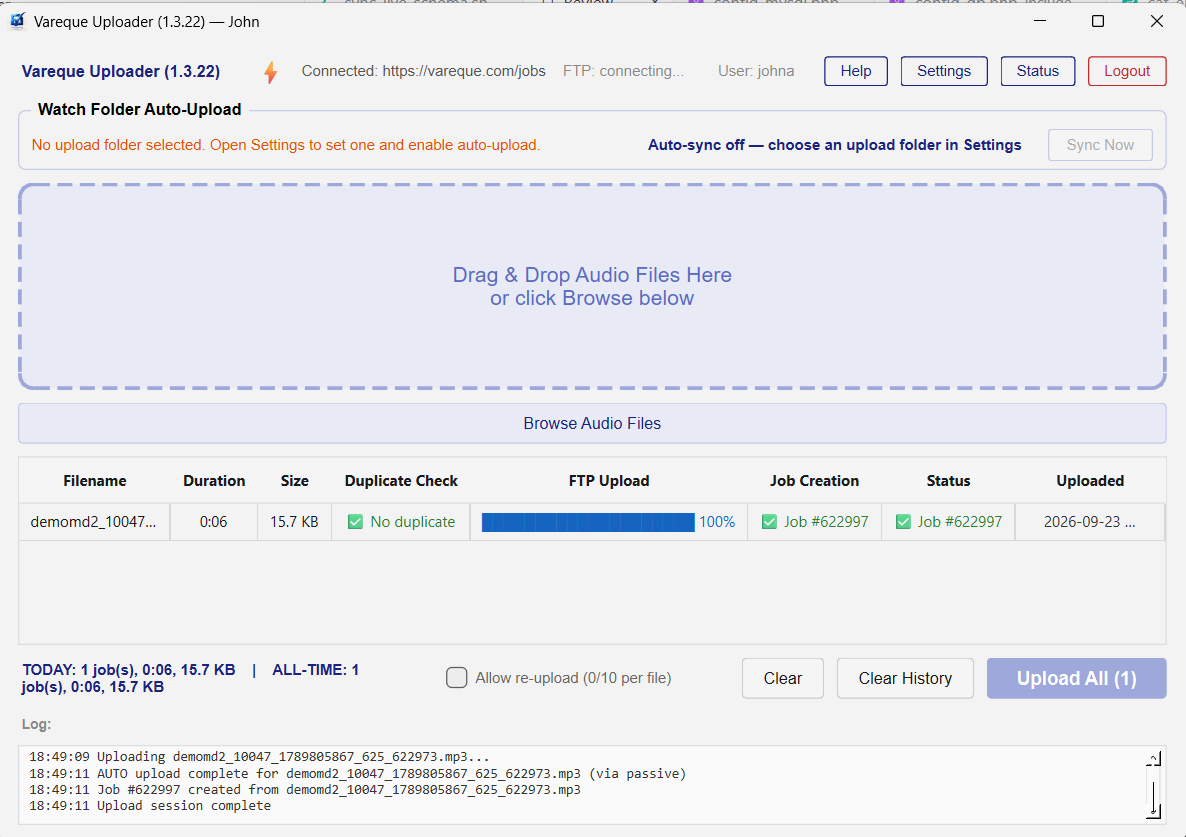 Main window — drop zone and file table
VMax Android App Guide
Sign in, record and review takes, manage the library, and upload from your phone. Covers profiles, auto-upload, and billing notes.
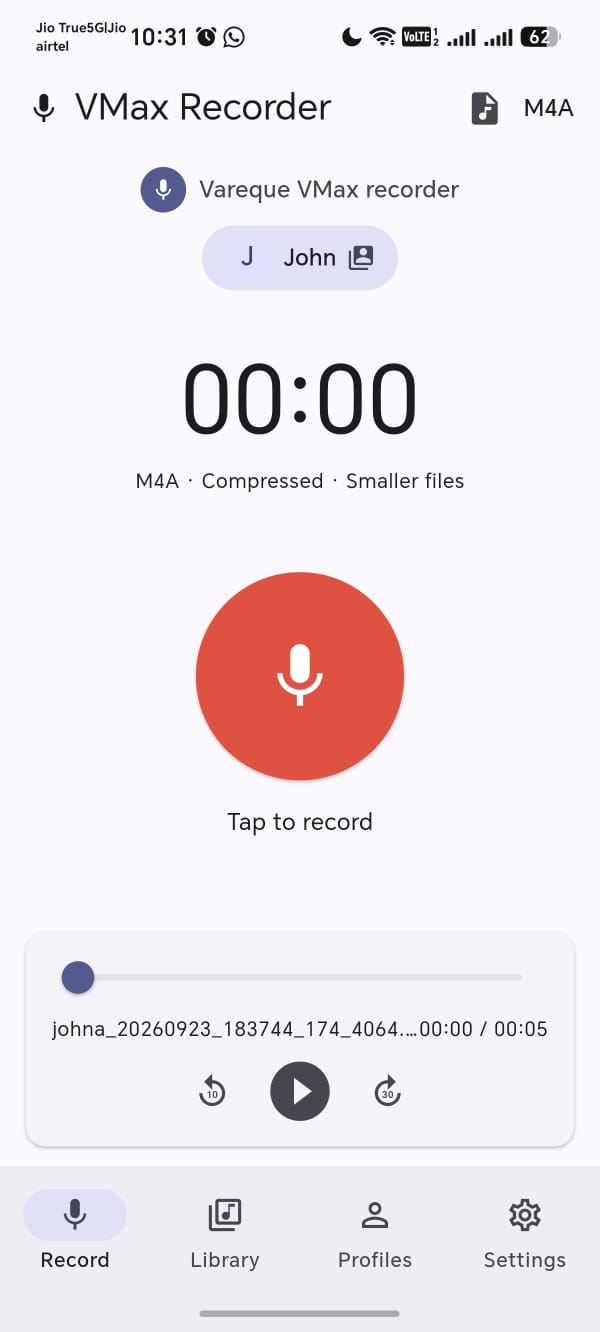 Record tab — mic and transport controls
FTP & Network Help
Ports, firewalls, VPNs, and common upload errors for the desktop uploader and VMax app.
Track & Manage Your Jobs
Review completed transcripts, check job statuses, and append electronic signatures before distribution.
- Sign in at vareque.com/jobs
- Use the job list to filter by status, date, or confirmation number
- Click a job to view audio, transcript, and track history
📞 V800 Telephone Dictation
Dictate medical reports 24/7 from any landline or cell phone. Call your toll-free number, authenticate, and use the in-call keypad controls below.
📱 Telephone Keypad Controls (V800)
While recording, only 1 · 3 · 5 · 6 · 7 · # work — keys 2 4 9 0 are available when paused. Keys 8 and * are not used. Always press 1 before hanging up to save your dictation.
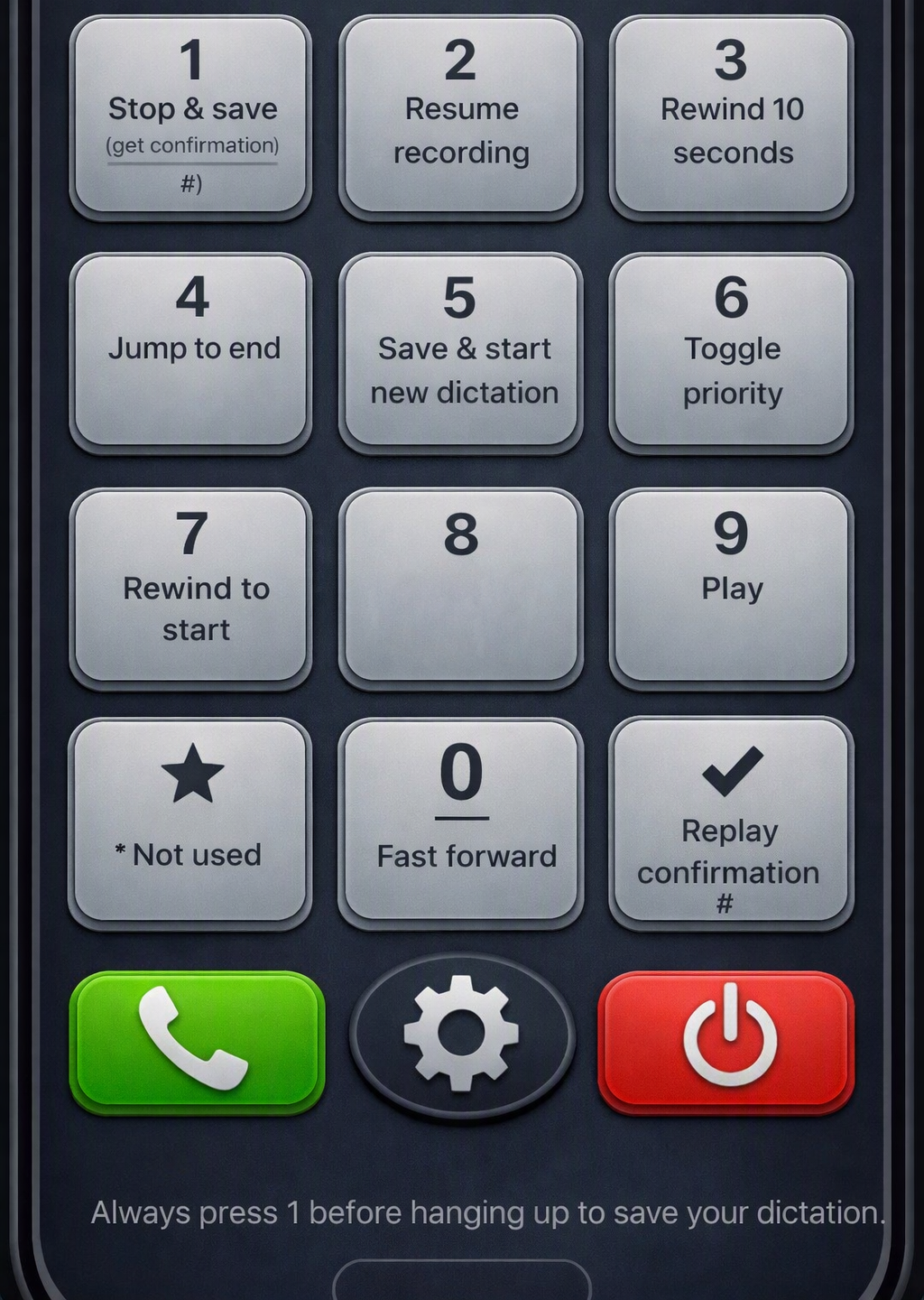 V800 in-call keypad reference
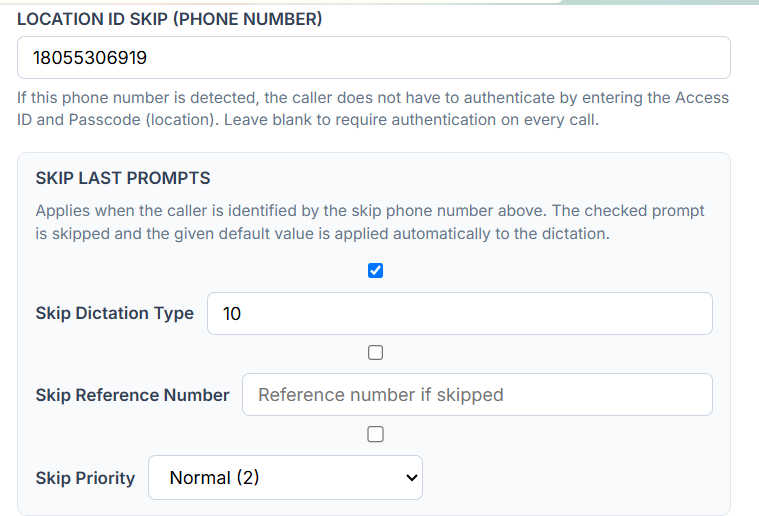 Skipping optional V800 prompts during a call
🎧 Transcriptionist (MT) & Quality Assurance (QA) — VEdPro
Workflow for checking out dictations, transcribing in the VEdPro online editor, and completing quality audits before physician delivery.
Open Your Job Queue
Sign in to the author/MT portal and check out pending jobs from the queue. Stream audio with the HTML5 player or VEdPro foot-pedal controls.
VEdPro Online Editor
Use the editor toolbar: Play Audio, Cover Page, Edit Header/Footer, Edit Content, Save, Preview, Submit. Update patient demographics (name, DOS, Ref ID, comments).
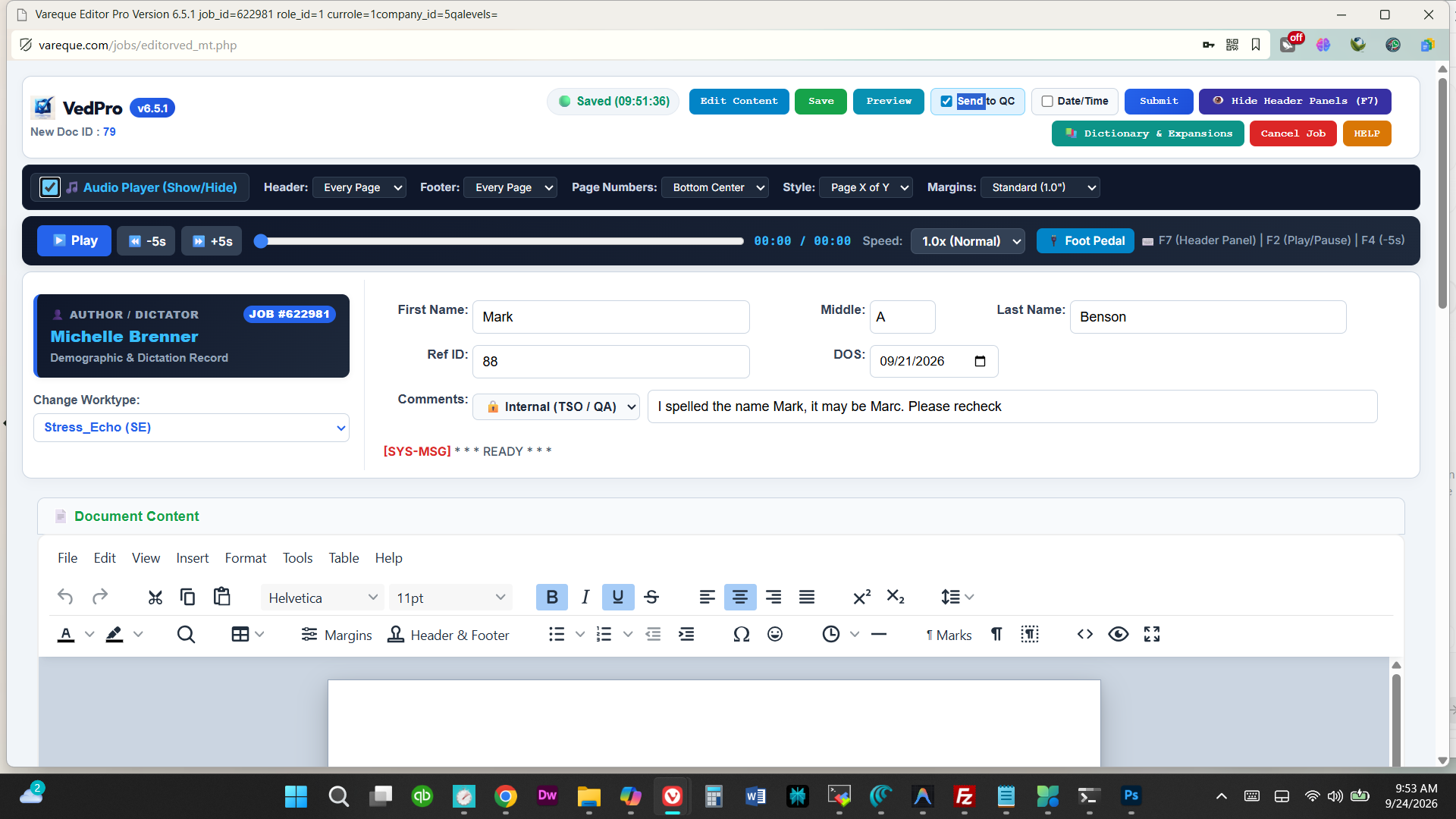 VEdPro editor toolbar — header panels open
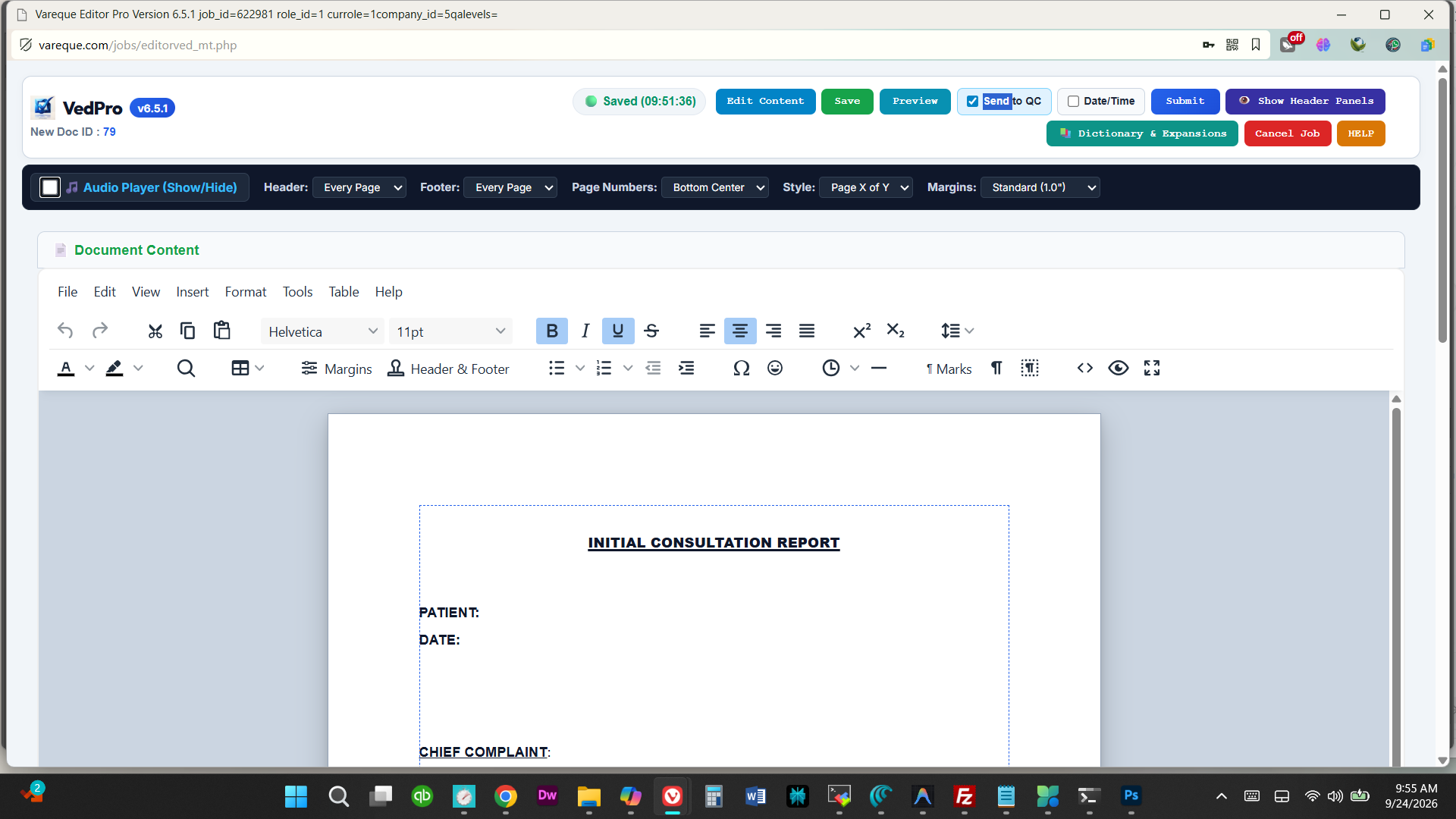 VEdPro with header panels hidden (F7)
QA Review Levels
Transcripts pass automated line-count audits and multi-tier Quality Assurance reviews (QA1, QA2, QA3) before final delivery.
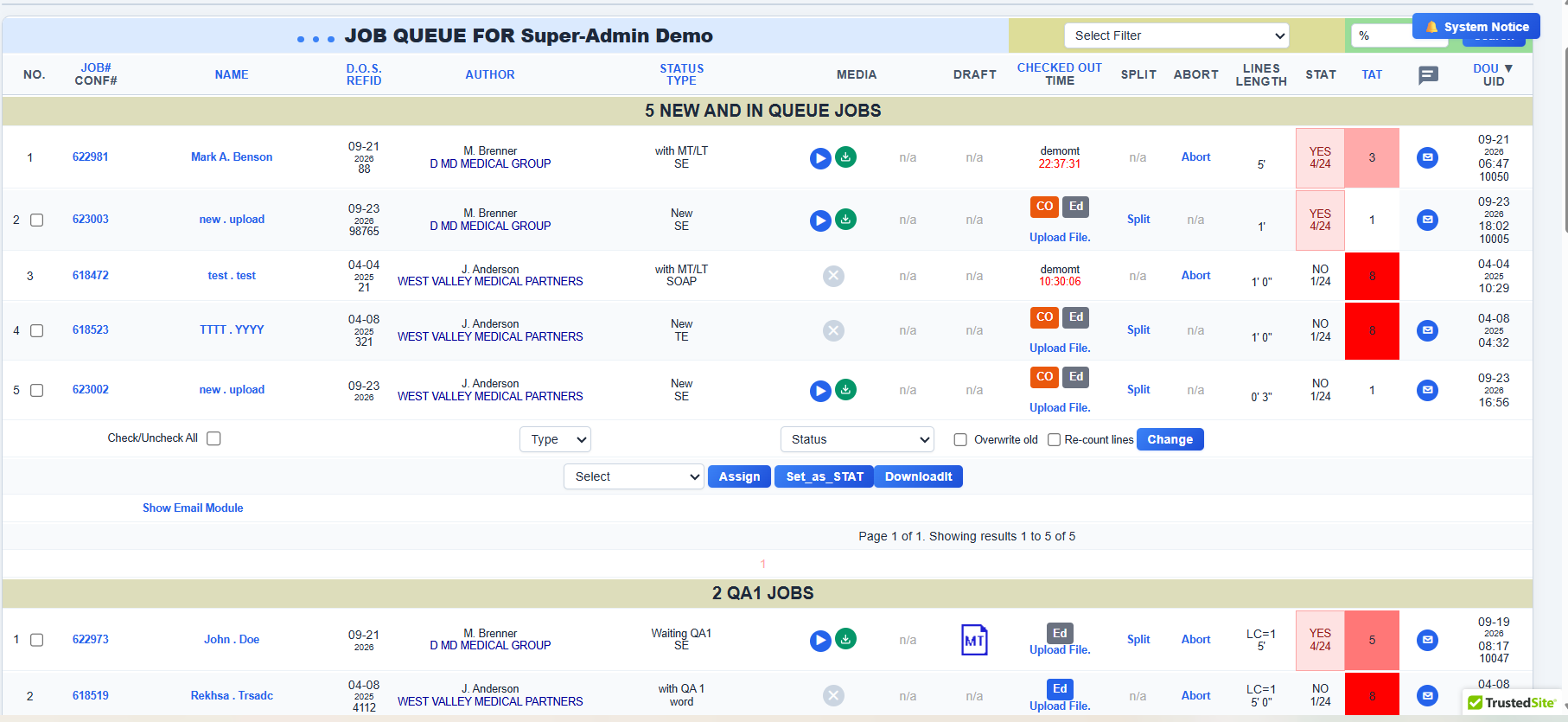 Job list with QA review levels
🛠️ Administrator Control Panel & Job Queue
Procedures for administrators managing accounts, worktypes, billing, and the master job queue.
How to Access the Control Panel
- Open vareque.com/manage/
- Sign in with your administrator credentials
- The home dashboard lists the main tools (Jobs, users, billing, reports)
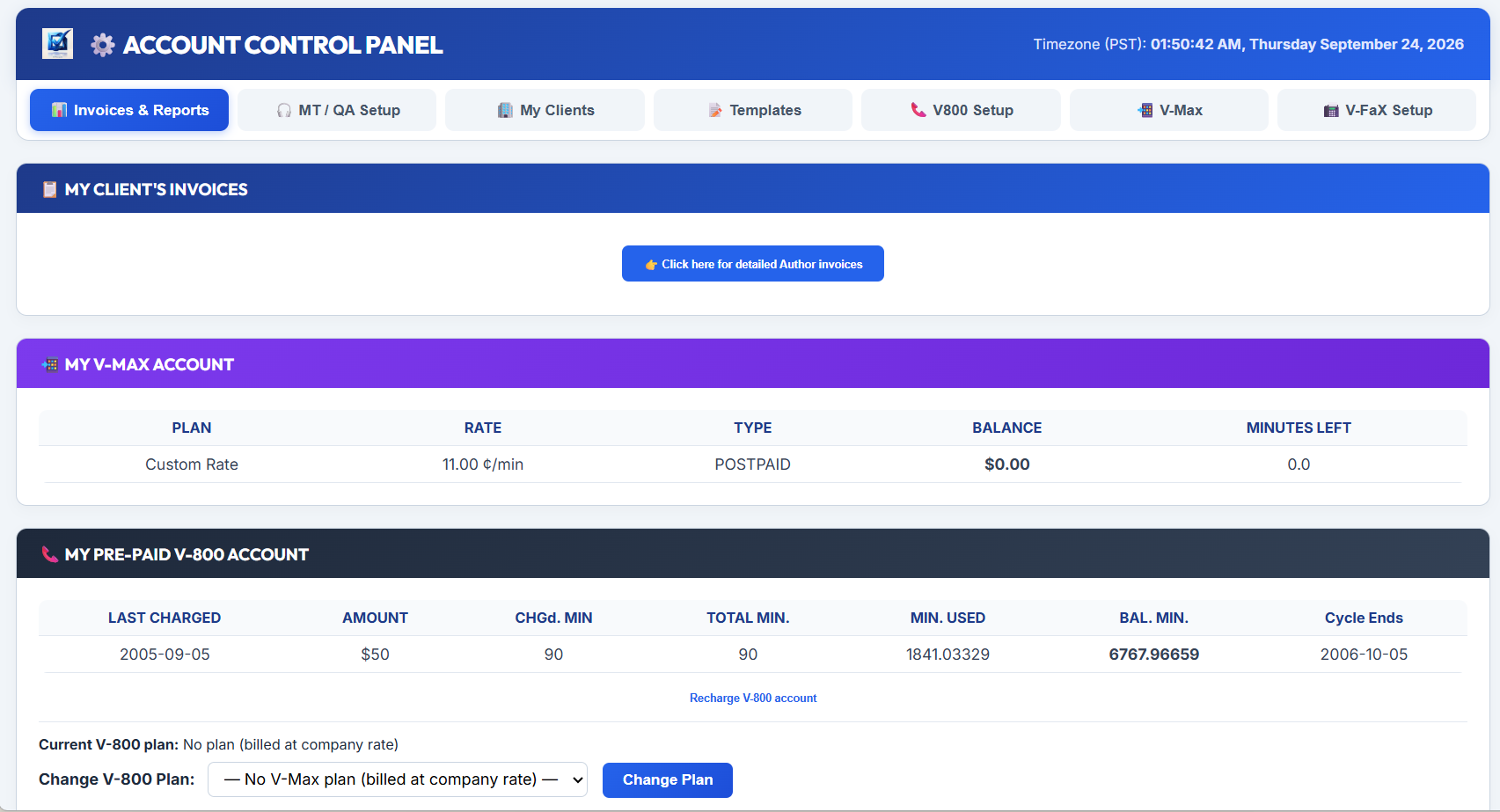 Control panel home dashboard
Master Job List
Search and filter all jobs by date, company, status, or confirmation number. Inspect job track history and fix line-count issues.
- From the control panel, open Jobs
- Or go directly to manage/jobmanage.php
- Use the date range, filters, and search box to narrow results
Master job list
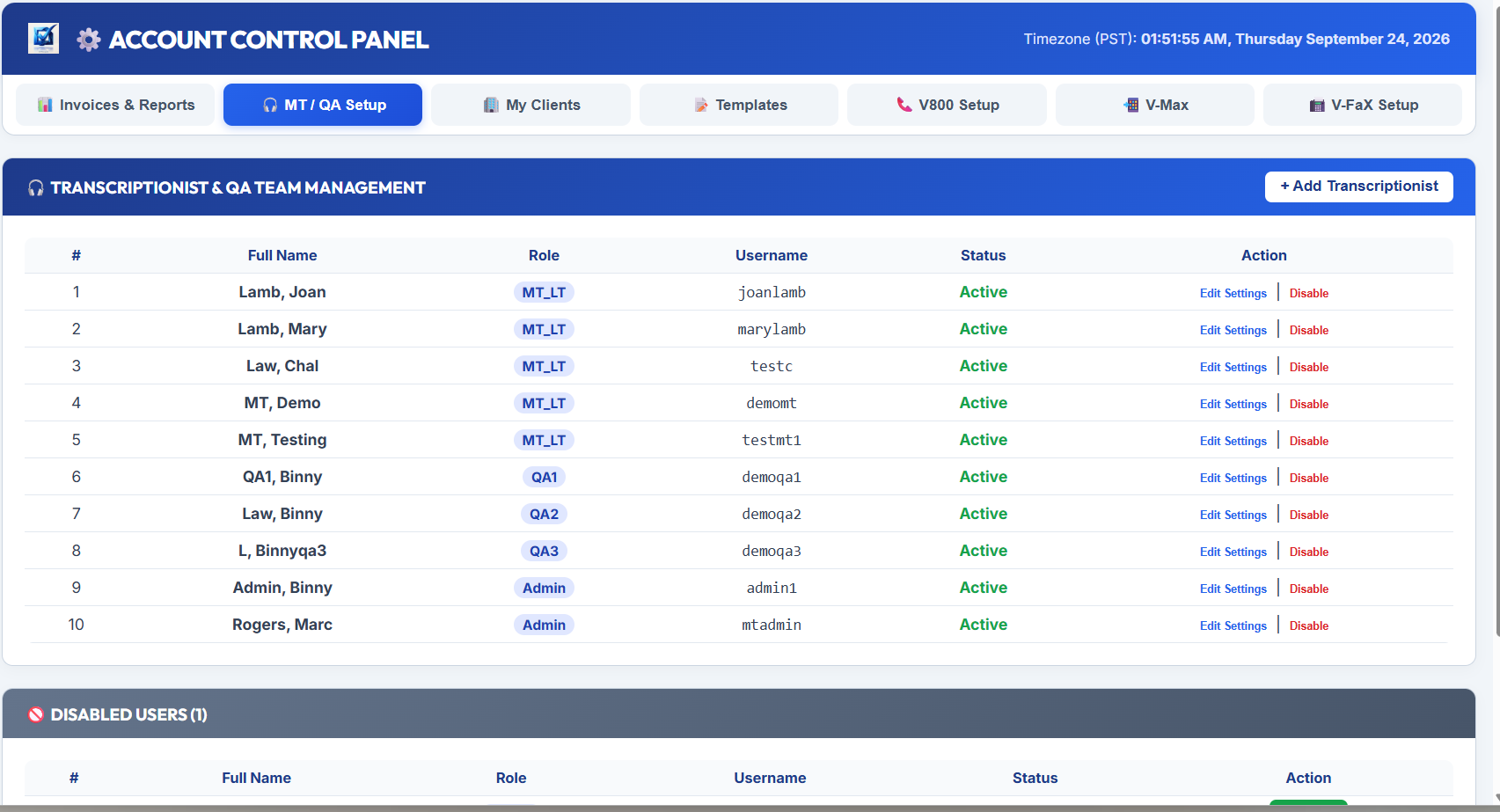 Control panel utilities
Users, Authors & Worktypes
- Create physician author accounts and set company affiliation
- Assign roles (Author, Author Admin, MT, QA, Admin)
- Configure worktypes, billing cycles, and line-count rates
- Review activity logs and job-track audit histories
🛡️ HIPAA Security Standards & Whitepaper
V-DoX complies with all HIPAA Administrative, Physical, and Technical Safeguard requirements:
- 256-Bit SSL/TLS Encryption: All data in transit and at rest is protected with AES-256 encryption.
- Strict Role-Based Access Control (RBAC): Granular permissions restrict patient record access strictly to authorized personnel.
- Immutable Audit Trails: Every document creation, view, edit, and export event is logged permanently with IP address and timestamp.
- Multi-Factor Authentication: Email OTP, mobile SMS, and authenticator (TOTP) options available under Personal Settings.