
VedPro Logo

VedPro 6.0 Editor Guide

Tips, keyboard shortcuts, formatting rules, and productivity tools to assist you

Google Chrome Optimized for Chrome
๐Ÿ”
Open MT & QA User Manual โ†—
๐Ÿ“Œ

Important Core Guidelines

โ†‘ Top

Please keep the following fundamental rules in mind while working in the document editor:

  • Component Assembly: We have divided the document into distinct components, all securely stored in the database under your Job ID. Whenever a preview or PDF is generated, these components assemble dynamically into a formatted document according to the worktype template.
  • Instant Database Persistence: Whenever you press Save, Preview, or Submit, your work is immediately committed to the database.
  • Preserve Empty Spacing Lines: Never delete empty lines from the Header or Footer. They are specifically calibrated for precise visual placement on printed and exported pages.
  • Tabular Cell Confinement: Most text fields requiring data entry are positioned within specific table cells so that content cannot unintentionally overflow or disrupt neighboring sections.
  • Font Integrity: Watch out for sudden or unintended changes in font family or font size. The default system font is Times New Roman โ€“ 12 pt.
  • Smart Action Buttons: The Save / Preview / Submit buttons activate as soon as at least one change is detected in the document content.
๐Ÿ“š

Medical, Legal & Law-Enforcement Dictionary & Expansions (AutoCorrect)

โ†‘ Top

VedPro includes an integrated Technical Dictionary & Word Expansions (AutoCorrect) manager accessible directly from the toolbar button "๐Ÿ“š Dictionary & Expansions" or under the Tools → Dictionary & Word Expansions menu. It comes pre-loaded with comprehensive libraries for both Medical/Clinical and Legal & Law Enforcement transcription.

โšก
Live Auto-Expansion Active: Type shorthand followed by Space or Enter in the editor, and it instantly expands to its full phrase! Capitalization is preserved automatically (e.g. Ro → Reporting officer, Htn → Hypertension).

1. Comprehensive Pre-Loaded Shorthand Libraries:

โš–๏ธ Legal & Law Enforcement Shorthand:
  • ro → reporting officer
  • ao → arresting officer
  • po / ofc → police officer / officer
  • veh → vehicle
  • susp → suspect
  • vic → victim
  • wit → witness
  • dob → date of birth
  • pc → probable cause
  • sw / bw → search warrant / bench warrant
  • mir → Miranda warning
  • aff → affidavit
  • dep → deposition
  • plf → plaintiff, def → defendant
๐Ÿฉบ Medical & Clinical Shorthand:
  • htn → hypertension
  • sob → shortness of breath
  • c/o → complains of
  • pt / pts → patient / patients
  • hpi → History of Present Illness
  • ros → Review of Systems
  • pe → Physical Examination
  • prn → as needed
  • bid / tid / qid → twice / three / four times daily
  • cad → coronary artery disease
  • chf → congestive heart failure
  • dvt → deep vein thrombosis

2. 1-Click Quick-Load Presets: In the Dictionary & Expansions modal dialog, you can click "โš–๏ธ Load Legal & Police", "๐Ÿฉบ Load Medical", or "๐ŸŒ All Combined" to instantly populate your workspace with the terms tailored to your organization's specialty.

3. Microsoft Word Expansion Synchronization: Have existing AutoCorrect or AutoText abbreviations in Microsoft Word? Open the dialog, click "๐Ÿ“ฅ Import from MS Word", paste your shorthand pairs (one per line, format: abbr = expansion, comma-separated, or tab-delimited), and click "Sync & Merge Expansions". Your entire existing MS Word dictionary is instantly imported!

4. Technical & Legal Vocabulary Collections: View, search, and manage specialized terms such as Affidavit, Subpoena, Indictment, Arraignment, Jurisdiction, Chain of Custody, Habeas Corpus, Voir Dire, Res Judicata, Mens Rea, Prima Facie or clinical terms like Cholecystectomy, Atorvastatin, Hepatosplenomegaly.

๐Ÿ”ค

Spell Checker

โ†‘ Top

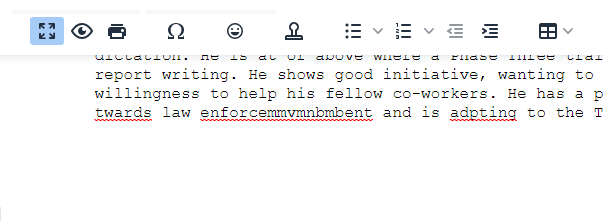
Spell Checker automatically underlines unrecognized words with red wavy lines directly inside the editor canvas.

VedPro harnesses Google Chrome's high-speed native dictionary to check your text in real time without lag or delay.

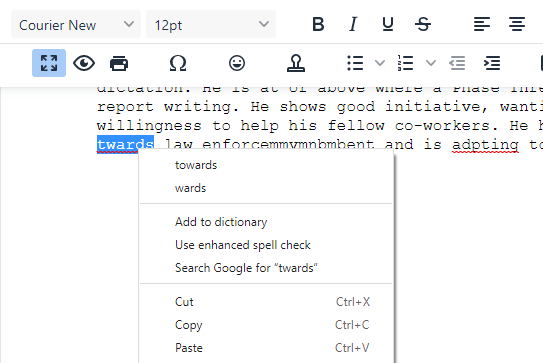
Spell Checker red wavy underlines
๐Ÿ“–

Dictionary Word Options & Suggestions

โ†‘ Top

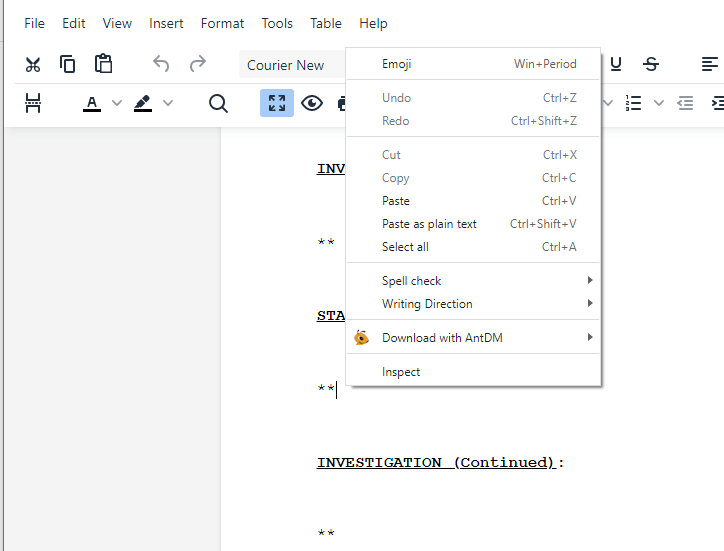
To inspect spelling suggestions for any doubtful word, press Ctrl + Right-Click (or standard Right-Click) directly on the red-underlined word.

Dictionary Word Suggestions and Add to Dictionary
๐Ÿ’ก
Add to Dictionary: If the word is a valid medical term, technical phrase, or physician name, click "Add to Dictionary". Google Chrome will permanently remember that spelling across all your transcription sessions.
๐Ÿ”ฒ

Switching to Full Screen Editor

โ†‘ Top

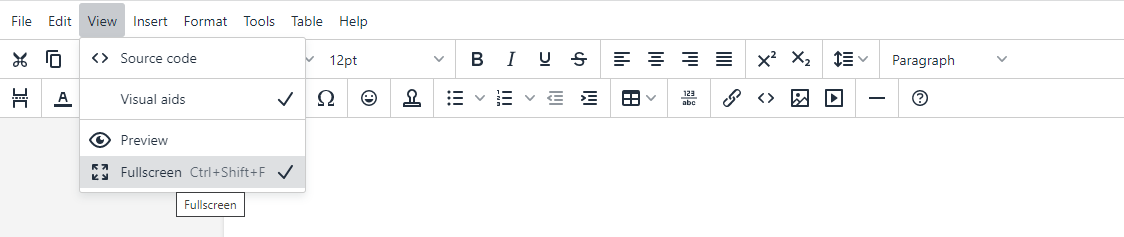
There are three ways to switch the editor to full screen for an immersive, distraction-free transcription experience:

Full Screen toolbar button
Full Screen view option

The universal keyboard shortcut to toggle Full Screen is: Ctrl + Shift + F

๐Ÿ“„

Inserting a Page Break

โ†‘ Top

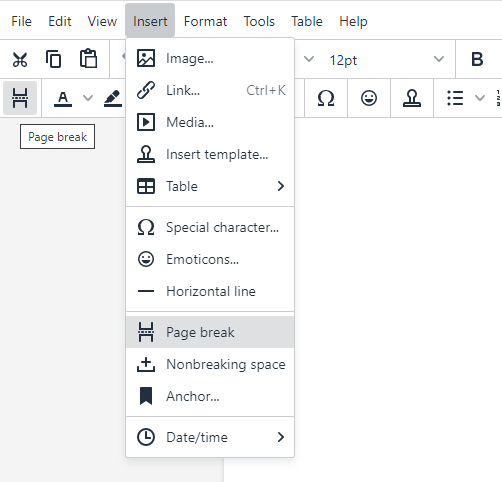
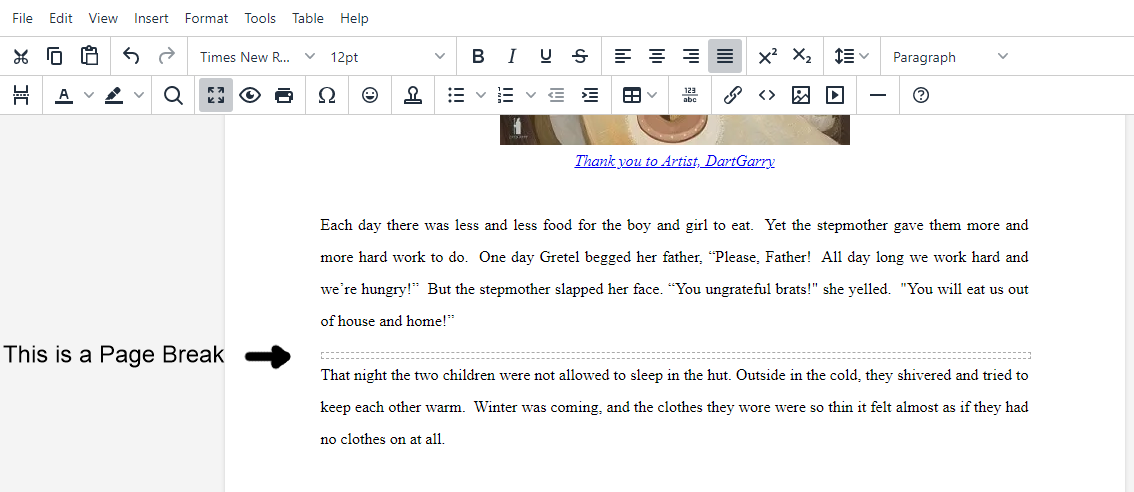
To insert a page break and force content onto a new page, use the toolbar Page Break button or Insert menu:

Insert Page Break button
Page Break visual separator
โ†ต

Inserting a Line Break

โ†‘ Top

To insert a soft line break without starting a new paragraph or adding paragraph spacing, use the keyboard shortcut:

Shift + Enter

๐ŸŽต

Downloading Audio Files

โ†‘ Top

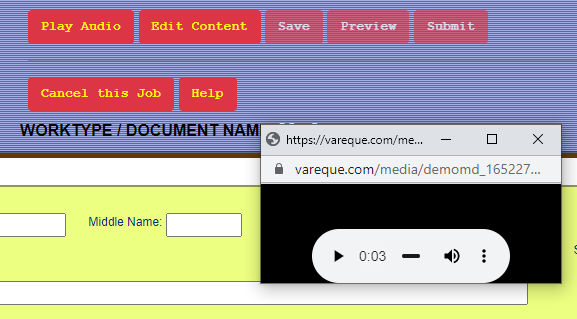
After clicking the "Play Audio" button, a compact player window will pop up:

Play Audio popup player

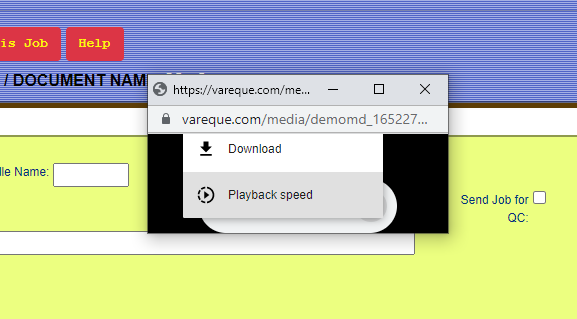
Click on the three vertical dots on the right-hand side of the speaker icon:

Audio player download menu

Selecting "Download" presents a browser Save As dialog to save the audio file directly to your local computer.

๐Ÿ“‘

Header and Footer

โ†‘ Top

The Header & Footer contain repeating text that appears at the top and bottom of each page, with specific exceptions such as the Cover Page or First Page.

Depending on the template configuration, a document might not utilize a Header or Footer. In such cases, the buttons to edit them are automatically hidden.

The total vertical height allowed for Header and Footer content is restricted by the Top and Bottom margins defined in the worktype template.

๐Ÿ“

Document Contents

โ†‘ Top

The Contents section is the primary body of the document positioned between the Header and Footer. In multi-page reports, content flows continuously across pages.

By default, the editor opens with Contents ready for immediate typing. If the template contains distinct Headers or Footers, switch to them using their respective editor buttons.

๐Ÿ“”

Cover Page

โ†‘ Top

The Cover Page is a distinct page with its own independent layout that does not share the common Header, Footer, or Content of subsequent pages.

It represents Page 1 of the document and operates under its own template rules.

๐Ÿฅ‡

First Page

โ†‘ Top

The First Page (Front-Page designate) serves as Page 1 with unique introductory Header and Footer elements.

The contents of the First Page may span onto multiple pages. Starting from subsequent pages, the standard Header and Footer will apply consistently through the end of the document.

๐Ÿงน

Clear Chrome Cache

โ†‘ Top

Whenever system or script updates are released, changes may not take effect until your browser cache is refreshed.

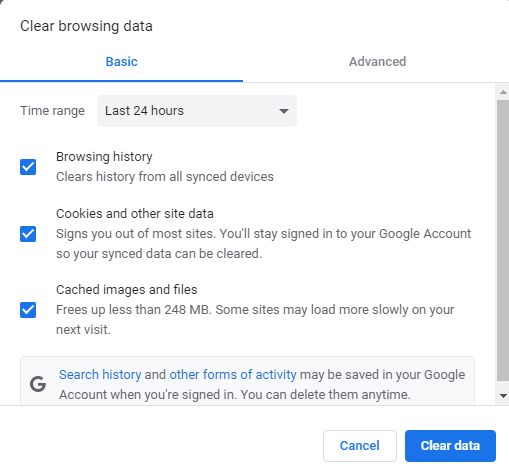
To clear the browser cache quickly, copy and paste this address into your Chrome address bar:

chrome://settings/clearBrowserData

Clear Browser Data dialog

When the popup appears, click "Clear Data" and reload the editor tab.

๐Ÿ“

Line Numbering Alignment

โ†‘ Top

For legal pleadings or transcripts with vertical line numbering, please adhere strictly to the Font Family and Font Size preset in the template.

The line numbers along the left margin are geometrically calibrated to match the line height and font size of the template. Deviating from template settings will disrupt alignment.

๐Ÿ“‹

Right Way to Copy / Paste

โ†‘ Top

Each template has predefined typography, line heights, and justification. To maintain these presets when pasting text from outside sources:

๐Ÿ’ก
Recommended Shortcut: Press Ctrl + Shift + V to "Paste as plain text". This ensures the template formatting is preserved and not overridden by foreign styles.

If you intentionally need to maintain an intricate external layout or table structure, use standard Ctrl + V.

Right Way to Copy and Paste as Plain Text
๐Ÿ–๏ธ

Text Highlighting

โ†‘ Top

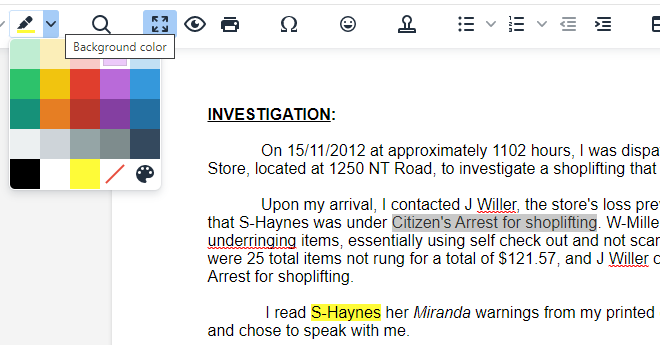
To highlight text, select the desired words with your mouse or keyboard, click the Highlight ("Background Color") icon in the editor toolbar, and choose your color.

Highlighting text in editor
โ‡ฅ

Indentation Controls

โ†‘ Top

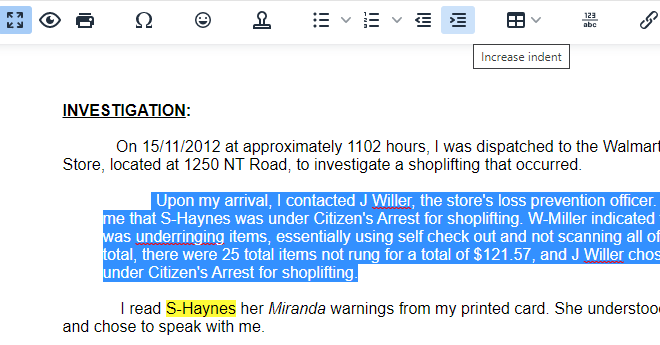
The toolbar provides two dedicated buttons for paragraph indentation: Increase Indent (Indent-Right) and Decrease Indent (Indent-Left).

Indentation icons in toolbar